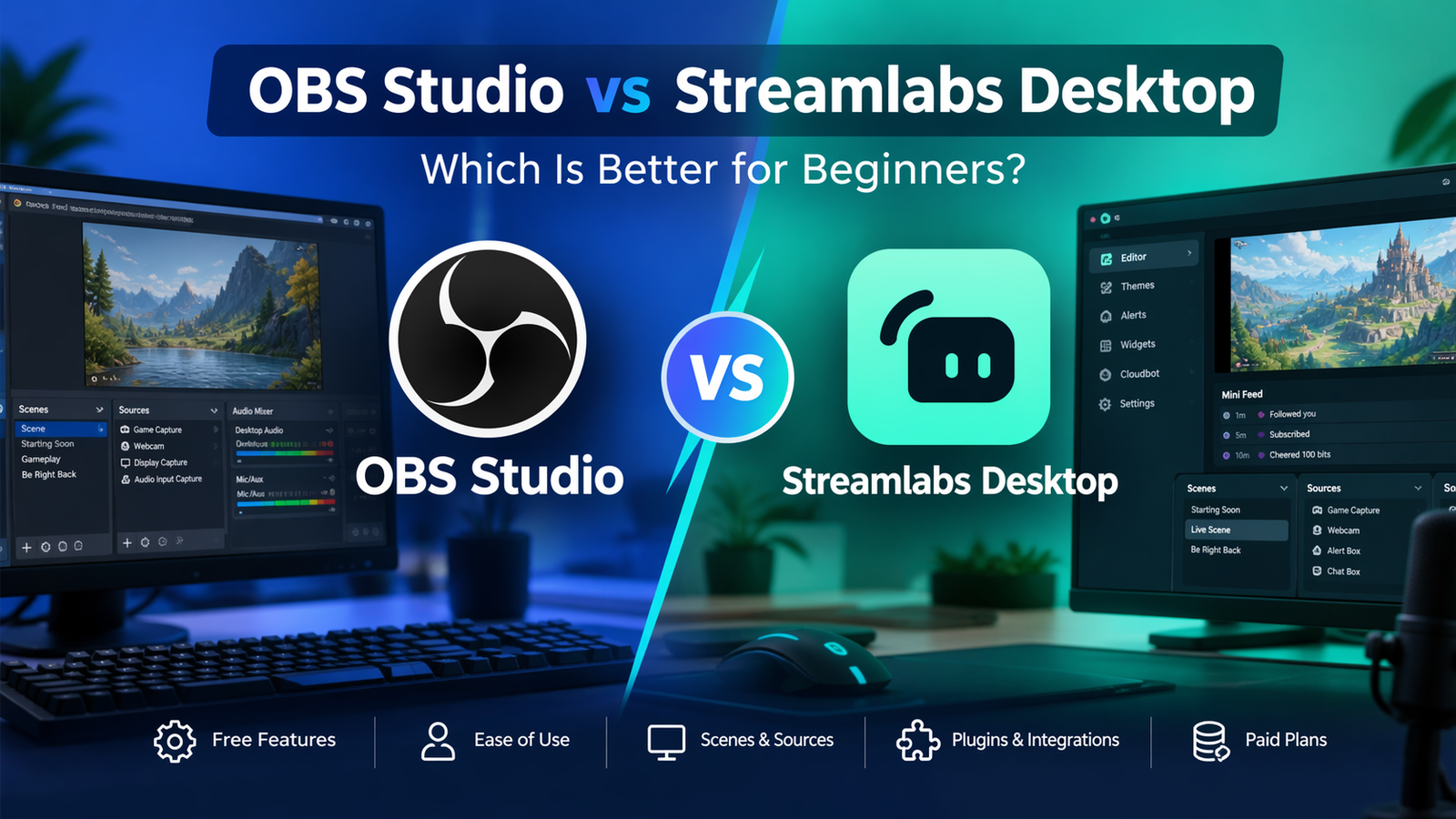
Choosing your first streaming application is less about finding the program with the longest feature list and more about removing obstacles between you and a reliable broadcast. OBS Studio offers extensive control without a subscription. Streamlabs Desktop packages broadcasting, alerts, chat tools, and visual themes into a guided experience. Both can record videos and stream gameplay, webcams, or tutorials. For most beginners, OBS is the better long-term free choice; Streamlabs is attractive when convenience and built-in presentation tools matter more than customization.
Quick Comparison: OBS Studio vs Streamlabs Desktop
| Feature | OBS Studio | Streamlabs Desktop |
|---|---|---|
| Core streaming and recording | Free, without watermarks | Free, without a required subscription |
| Beginner setup | Automatic configuration wizard | Guided onboarding and account connection |
| Scenes and sources | Flexible manual organization | Visual editor with ready-made themes |
| Alerts and chat | Browser sources or integrations | Built-in widgets and chat tools |
| Extensions | Community plugins with compatibility checks | Integrated App Store; many apps require Ultra |
| Paid upgrades | None from the OBS Project | Optional Ultra and Ultra Plus subscriptions |
| Desktop systems | Windows, macOS, Linux | Windows and macOS |
The best choice depends on whether you prefer to build your own workflow or start with more integrated tools. Neither application can compensate for an unstable internet connection or overloaded computer.
Which Software Is Easier to Set Up?
OBS Studio: simple foundations, more manual work
OBS opens with a relatively plain workspace. Its Auto-Configuration Wizard considers your hardware and streaming goals, then suggests initial settings. You add scenes, select sources, check microphone levels, and connect your streaming service. Nothing requires purchasing an overlay package.
The challenge appears when you want follower alerts, custom chat displays, or elaborate branding. These usually involve browser sources, external services, or plugins. Each addition creates another setting to understand. Beginners willing to learn the basics, however, gain a clear picture of how their broadcast works.
Streamlabs Desktop: faster visual onboarding
Streamlabs guides new users through account connection, microphone selection, optional overlays, and plan selection. Its built-in alerts, widgets, and chat integration reduce the number of separate tools needed for a typical gaming stream. You can choose the free plan during setup.
This convenience has a tradeoff: a busy interface can distract from essential settings, and premium designs may appear alongside free options. Check labels before choosing a theme or add-on. An attractive layout is not a substitute for balanced sound and stable video.
Free Features: What Do You Actually Get?
OBS Studio is free, open-source software with no project-imposed watermark, commercial-use restriction, or subscription tier. Scenes, sources, audio filters, recording, streaming, and Studio Mode are available without payment. Additional browser-based alerts may come from third parties with their own pricing policies.
Streamlabs Desktop also provides free recording and broadcasting, plus alerts, chat widgets, Cloudbot moderation, and a selection of overlays. Its free Dual Output feature can send one horizontal stream and one vertical stream to separate destinations simultaneously. That is different from unrestricted multistreaming across several destinations, which is an Ultra feature.
A practical rule: list the functions you need before comparing subscription plans. Someone broadcasting to one Twitch or YouTube channel probably needs neither premium themes nor paid distribution tools.
Scene Management and Customization
A scene is a layout your audience sees; sources are its ingredients. A gaming scene might combine game capture, webcam, microphone, and an alert graphic. A break scene could show a static image and background audio.
OBS gives you direct control over individual sources, ordering, transitions, filters, and scene collections. Collections let you separate a podcast layout from a gaming setup. Profiles separately store output settings, such as resolution or streaming destination. Understanding this distinction makes backups and switching formats easier.
Streamlabs provides similar fundamental scene editing, plus a Layout Editor for rearranging workspace panels. Both applications offer Studio Mode, allowing you to preview scene changes before displaying them publicly. Streamlabs stands out for convenient access to theme designs; OBS stands out when you want to fine-tune arrangements and expand your workflow independently.
For either program, create only three scenes initially: Starting Soon, Main Content, and Be Right Back. Add complexity only after those scenes work reliably.
One overlooked difference is what happens when your streaming routine changes. OBS scene collections and profiles can be exported separately, making it easier to document configurations for different channels. Streamlabs emphasizes connected tools and account-based conveniences, but you should still keep original image files, animation assets, and login recovery details organized. Whatever you choose, securely maintain your own folder of reusable stream materials.
Plugins, Apps, and Integrations
OBS supports community-developed plugins that extend sources, filters, device integration, and other capabilities. The advantage is flexibility. The downside is maintenance: plugins may support only certain operating systems, processor architectures, or OBS versions. Download from reputable project pages and check compatibility after updates.
Streamlabs takes a curated approach through its Desktop App Store. Some apps are free, but many require Ultra. The smaller decision burden is useful for beginners, although access to particular extensions may depend on an ongoing subscription.
There is also a middle option: the official Streamlabs Plugin for OBS brings alerts, widgets, overlays, and related tools into OBS. The plugin is free to install, with selected premium capabilities requiring Ultra. Its documented installer currently supports Windows, not macOS or Linux. This combination can deliver an OBS-centered workflow without assembling every interactive element manually.
Performance: Which Uses Fewer Resources?
Claims that one program always delivers higher frame rates are unreliable without matching hardware and settings. Streaming performance depends on your game, encoder, resolution, frame rate, browser sources, animated overlays, and background applications.
Instead of trusting generic benchmarks, run the same short recording in each program using equivalent scenes and video settings. Watch CPU and GPU usage, inspect the recording for stutters, and check available rendering or encoding statistics. Do not compare a bare OBS scene with a Streamlabs scene filled with animated widgets.
If gameplay becomes choppy, reduce scene complexity, cap game frame rates, or lower output resolution. Hardware encoding may help when compatible hardware is available. If viewers experience dropped network frames, investigate connection stability and bitrate before blaming your chosen application.
What Does Streamlabs Ultra Add?
Streamlabs Ultra is optional. Its advertised benefits include broader server-side multistreaming, a larger library of premium overlays, full Desktop App Store access, expanded cloud storage, and additional creator tools. Ultra Plus adds higher limits and more personalized support. Plan availability, promotional pricing, and billing terms can change, so review the current checkout before subscribing.
OBS has no equivalent official paid tier. You may still choose to purchase custom artwork, hardware, or third-party services, but none is necessary to unlock OBS’s built-in broadcasting functions.
Pay for Ultra only if you can name a feature you will use regularly. Paying solely because a design looks professional rarely solves the problems that affect a beginner’s first broadcasts.
A Practical First-Stream Checklist
- Install software from its official website, then update graphics drivers if needed.
- Connect your intended platform and confirm your account can broadcast.
- Create a main scene containing only the content source and microphone.
- Make a local test recording; listen for distortion, echo, and mismatched volume.
- Add one alert or overlay, then test again before adding more.
- Verify your intended canvas orientation, output settings, and internet connection.
- Keep private notifications, passwords, and unrelated desktop windows offscreen.
- Start with an unlisted or private test stream when your platform permits it.
This sequence separates capture problems from decorative problems. It also prevents spending hours customizing a scene that cannot yet record clear audio.
Frequently Asked Questions
Is OBS Studio completely free?
Yes. OBS Studio does not require a subscription or impose a watermark. Optional services connected to OBS can have their own charges.
Can I use Streamlabs without Ultra?
Yes. Its free plan supports basic streaming, recording, widgets, overlays, and qualifying Dual Output setups. You do not need Ultra for an ordinary single-platform broadcast.
Can I switch from Streamlabs to OBS later?
Yes. OBS can import Streamlabs Desktop scene collections, although some integrations or assets may need attention afterward. Check sources, audio routing, and platform credentials before your next live session.
Which is better for a low-end PC?
Neither is automatically best for every computer. Test both with equivalent scenes, avoid unnecessary animations, and prioritize stable output over visual complexity.
Can beginners stream to YouTube and Twitch simultaneously?
Streamlabs Ultra supports broader multistreaming. Its free Dual Output permits one horizontal and one vertical destination, not two unrestricted horizontal feeds. OBS workflows may use third-party services or extensions, subject to their limits and costs.
Final Verdict
Choose OBS Studio if you value a permanently free core application, granular scene control, Linux support, and flexible extensions. Choose Streamlabs Desktop if guided setup, integrated alerts, chat management, and ready-made designs will help you start broadcasting sooner. Neither is inherently the professional option: both can produce polished streams. For an undecided beginner, start with OBS, make a clean test recording, and consider Streamlabs only if its integrated workflow solves a specific inconvenience.
Sources and References
- OBS Project — Help Portal
- OBS Project — Quick Start Guide
- OBS Project — Scene Collections
- OBS Project — Profiles
- OBS Project — Plugins Guide
- OBS Project — System Requirements
- OBS Project — Encoding Performance Troubleshooting
- Streamlabs — Free vs. Ultra Features
- Streamlabs — Desktop Quick Start
- Streamlabs — Studio Mode and Layout Editor
- Streamlabs — Multistream and Free Dual Output
- Streamlabs — Plugin for OBS Guide
- Streamlabs — Plugin Setup and Compatibility
- Streamlabs — Desktop App Store
- Streamlabs — Dropped Frames and Performance