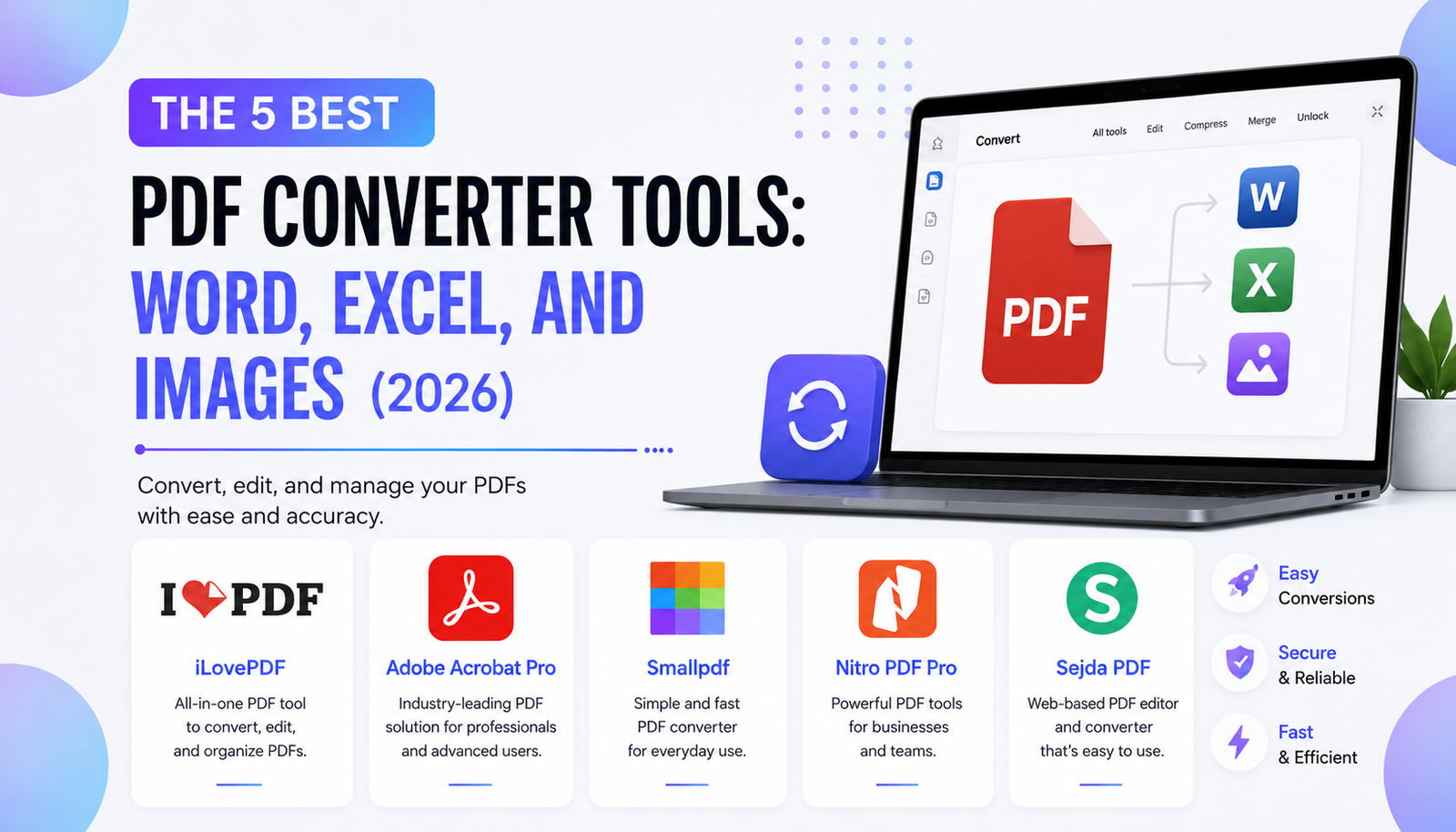
A PDF preserves a document’s appearance, but that does not mean its contents are easy to reuse. A supplier might send invoices as PDFs when you need spreadsheet rows. A colleague might share a report that needs editing in Word. You might simply need a clean image of one page for a presentation.
The right converter depends on what is inside the file, not just its extension. Text-based PDFs, scanned pages, complicated tables, and confidential records create different problems. This guide compares five established tools using their published capabilities, restrictions, and licensing information as of October 2026. These are practical recommendations, not the results of independent speed or accuracy tests.
What matters before choosing a converter?
First, try selecting a sentence in your PDF. If the letters highlight normally, the document probably contains usable text. If the entire page behaves like a picture, you may need optical character recognition, or OCR. OCR identifies characters in an image, but recognition mistakes still require proofreading.
Next, decide whether you need editable text, reusable data, or a picture. Word conversion prioritizes paragraphs and layout; Excel conversion must identify rows and columns; image export preserves the visible page without making words editable. Finally, check upload policies and free limits before submitting private documents. A browser tool is convenient, but local processing can be preferable when confidentiality matters.
PDF converter comparison at a glance
| Tool | Most suitable use | Important limitation |
|---|---|---|
| iLovePDF | Occasional browser conversions | OCR for scanned Word files requires Premium |
| Adobe Acrobat Pro | Complex documents and scanned files | Paid professional software |
| Smallpdf | Simple conversions across devices | Free downloads are limited |
| Nitro PDF Pro | Office-focused desktop workflows | Licensing depends on selected plan |
| Sejda PDF | Targeted conversions and offline privacy | Web limits vary by conversion tool |
1. iLovePDF: Best for occasional browser conversions
iLovePDF provides straightforward tools for turning PDFs into Word files, Excel workbooks, and JPG images. Its image converter offers two distinct actions: create a JPG from every PDF page or extract pictures embedded in the document. That distinction matters when you need a product photograph rather than a screenshot of the whole page.
For a normal text-based report, choose PDF to Word, upload the file, convert it, and inspect the downloaded document. The free tier covers essential operations but limits processing. Scanned pages are different: iLovePDF labels OCR for converting those pages to editable Word text as a Premium feature.
This is a sensible starting point for students and occasional office tasks. However, do not assume a converted spreadsheet will have correctly interpreted every merged cell or amount. Compare important figures with the original before using them in calculations.
2. Adobe Acrobat Pro: Best for demanding document workflows
Adobe Acrobat Pro offers exports to Word, Excel, PowerPoint, and image formats such as JPEG, PNG, and TIFF. Its OCR tools can make scanned text searchable and selectable, with settings for page ranges and recognition languages. Adobe also documents the ability to process OCR across multiple files.
These capabilities make Acrobat a strong choice when documents include scans, mixed layouts, and recurring corrections. For example, an accounts team can export an invoice table to Excel, then check whether invoice numbers, decimal separators, and totals landed in the intended cells. Acrobat provides the conversion workflow; it does not replace accounting verification.
The main tradeoff is cost and complexity. Casual users may not need a full professional editor. Equally, Adobe’s layout-retention claims should not be interpreted as a guarantee: custom fonts, nested tables, and poor scans can still need manual repairs. Keep the source PDF for reference.
3. Smallpdf: Best for accessible cross-device conversion
Smallpdf handles conversions between PDFs and common Office and image formats through a browser interface. It also offers mobile access, which suits people who receive files on a phone and want to finish a quick task without switching computers.
Its free plan is useful for occasional conversions, although downloads are limited. Advanced features, including broader OCR access, appear in paid plans. Check the current plan comparison rather than assuming every conversion option is free without restrictions.
Smallpdf says most tools automatically remove processed files from its servers after one hour. It also notes that paid users can choose online file storage. Those details are useful when assessing a workflow, but an automatic deletion policy does not remove every confidentiality concern. If your employer forbids external document uploads, use an approved offline application instead.
For ordinary documents, Smallpdf is an approachable option. For large batches or frequent scanned invoices, compare its paid allowances with desktop alternatives first.
4. Nitro PDF Pro: Best for Office-centered desktop work
Nitro PDF Pro focuses on creating, editing, and exporting PDFs, with support for Word, Excel, PowerPoint, and image formats. Nitro’s 2026 product documentation describes improvements to PDF-to-Office conversion and OCR in its Windows software, making it worth considering for teams that work primarily with business documents.
One purchasing detail deserves attention: Nitro’s offerings are not all interchangeable. Its subscription plans differ from Nitro PDF Classic, a Windows-oriented option sold through a single payment for a three-year license. That is not the same as permanent ownership. Check the feature comparison, operating system, and license duration before buying.
Nitro may suit someone who prefers a desktop editor and a familiar Office-style interface. Still, verify the specific edition supports your required workflow, especially automation, shared administration, or multiple-file processing. Marketing descriptions of a product family do not necessarily apply to every plan.
5. Sejda PDF: Best for specific tasks and offline control
Sejda combines browser tools with a desktop application for Windows, macOS, and Linux. Its PDF-to-Excel tool can extract tables into Excel or CSV, and its PDF-to-JPG tool can export pages as images. The desktop edition processes files locally, so documents do not need to leave your computer.
Be precise about its restrictions. The online Word converter lists a free allowance of up to 50 pages or 50 MB and three tasks per hour. Its online Excel converter lists a smaller 10-page allowance. Both conversion pages explicitly say scanned documents are unsupported for those particular conversions. Sejda offers a separate OCR tool, but that does not make every converter scan-aware.
Web uploads are automatically deleted after two hours, according to Sejda. For more sensitive documents, using its offline desktop program avoids that upload entirely. Sejda therefore stands out when you value specific utilities and control over where processing occurs, provided its per-tool limits fit the job.
How to avoid common conversion mistakes
A converter’s output should be treated as a draft, especially when accuracy matters. Follow this short checklist:
- Check the original. Open the PDF, identify scanned pages, and note tables, footnotes, and unusual fonts.
- Choose the correct output. Use DOCX for rewriting paragraphs, XLSX or CSV for calculations, and JPG or PNG for visual reuse.
- Convert a sample first. With a long document, inspect a representative page before committing to a large batch.
- Validate important data. Compare names, dates, totals, formulas, and decimal places against the original.
- Inspect layout. Check page breaks, headings, column order, missing images, and misplaced text boxes.
- Protect the source. Save an untouched copy and follow your organization’s document-handling rules.
With OCR, inspect easily confused characters such as zero and capital O, especially in invoice identifiers. Before sharing high-stakes results, request a second review of converted tables and figures.
For images, decide whether you want one picture for each page or only the original embedded photographs. For spreadsheets, remember that a visually accurate page is not necessarily a usable dataset. A table can look correct while numbers are stored as text.
Frequently asked questions
Can a free converter turn scanned PDFs into Word files?
Sometimes, but not every free tool includes OCR. iLovePDF reserves scanned-to-Word OCR for Premium, while Sejda’s standard PDF-to-Word converter says scanned files are unsupported. Check the precise feature, not just the product name.
Which format should I choose for PDF tables?
Choose XLSX when you want an editable workbook. CSV is useful for importing plain table data into another application, but it does not preserve complex page styling. Always verify numeric values and column alignment.
Is converting confidential PDFs online safe?
Providers publish security and deletion policies, but uploading still transfers data to an external service. For sensitive files, confirm organizational permission and consider offline processing. Automatic deletion is not a substitute for your own data-handling requirements.
Will PDF conversion preserve the original formatting perfectly?
No converter can promise perfect results for every document. Unusual fonts, scans, overlapping objects, and complex tables may produce errors. Compare the output with the source and correct anything that matters.
Final verdict
Choose iLovePDF for simple, occasional jobs; Acrobat Pro for demanding scanned and mixed-format documents; Smallpdf for convenient conversions across devices; Nitro for desktop-heavy Office workflows; and Sejda when focused tools or offline processing matter. Rather than choosing by a universal ranking, match the software to your document type, privacy requirements, and budget. The best conversion is one you can verify before sharing or relying on it.