
Want to build and survive with your friends? Here is the ultimate step-by-step guide to playing Minecraft multiplayer on Java and Bedrock editions.
Minecraft is a masterpiece of a sandbox game, but let’s be honest: surviving your first night, building a massive castle, or defeating the Ender Dragon is infinitely more fun when you are doing it with your friends. However, setting up a multiplayer session can sometimes feel as complicated as building a working Redstone computer.
Depending on what device you are playing on and whether you are in the same room or across the world, the method you need to use will change completely. Here is the ultimate, straightforward guide on how to play Minecraft with friends seamlessly.
Step 1: Check Your Edition (Java vs. Bedrock)
Before you invite anyone, you must figure out which version of Minecraft you and your friends own. Minecraft has two main versions, and unfortunately, they cannot easily play together without complex workarounds.
- Minecraft Java Edition: This is the classic, original PC version. You can only play with other Java Edition players (PC, Mac, and Linux). It is perfect for heavy modding and massive custom servers.
- Minecraft Bedrock Edition: This is the modern cross-platform version. If you are playing on a console (Xbox, PlayStation, Nintendo Switch), a mobile phone (iOS/Android), or the Windows 10/11 store version, you are playing Bedrock. Bedrock players can easily play with each other regardless of their device.
Pro Tip: Make sure you and your friends are running the exact same update version of the game before trying to connect!
Method 1: The LAN Network (For Same-House Gaming)
If you and your friends are hanging out in the same room and connected to the exact same Wi-Fi network, this is the easiest and completely free method.
- Launch your game and enter your single-player world.
- Press the ESC key to open the pause menu.
- Click on “Open to LAN”.
- Choose your preferred game mode (Survival, Creative) and whether you want to allow cheats.
- Click “Start LAN World”.
- Tell your friends to go to the main menu, click “Multiplayer”, and scroll to the bottom. Your world should automatically appear there for them to join.
Method 2: Minecraft Realms (The Official & Easiest Way)
If you are far apart and want a server that stays online 24/7 even when the host is sleeping, Minecraft Realms is the official subscription service provided by Mojang.
- How it works: You pay a small monthly fee to rent a private server directly from the main menu.
- The benefit: It requires zero technical knowledge. You simply click “Realms,” create a world, and invite your friends using their Xbox Live Gamertags (for Bedrock) or Minecraft usernames (for Java).
- Who is it for? Small groups of friends (up to 10 players) who just want a vanilla survival experience without dealing with IP addresses or server crashes.
Method 3: Free Third-Party Server Hosts (Aternos, Minehut)
If you want a dedicated server for your friends but do not want to spend any money, third-party hosting sites are your best friend. Services like Aternos and Minehut are incredibly popular.
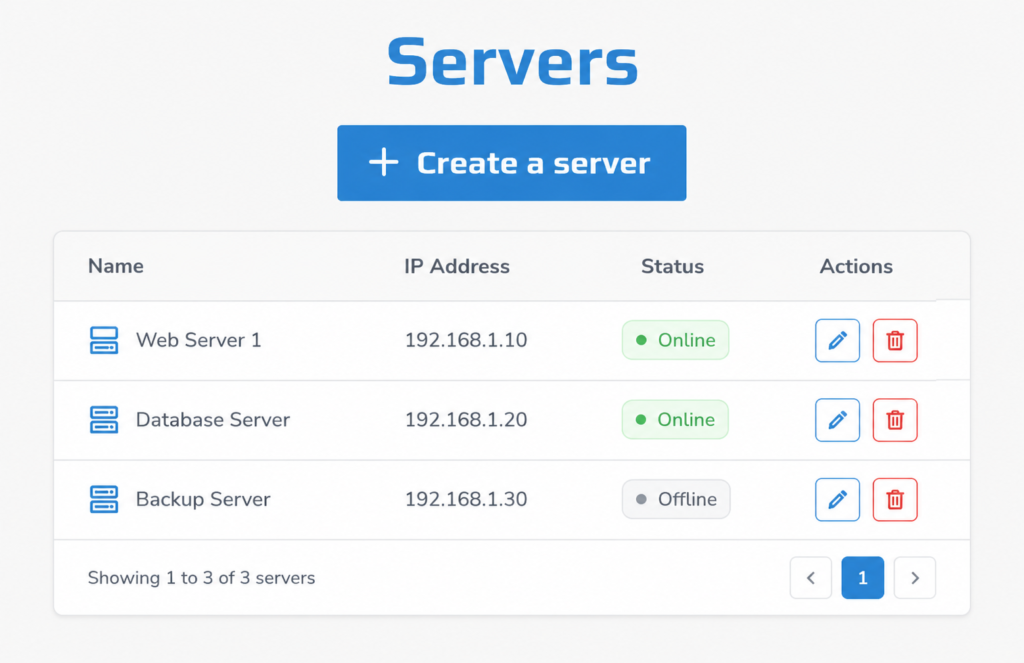
- The Setup: You go to their website, create a free account, and click “Create Server.” They will give you a specific IP address (e.g., yourname.aternos.me).
- How to join: You and your friends go to the Multiplayer tab, click “Add Server”, type in the IP address, and join.
- The Catch: Because these services are free, you might have to wait in a queue to start your server during peak hours, and the server will automatically shut down if no one is playing on it.
Method 4: Xbox Live Invites (Bedrock Exclusive)
If everyone in your friend group is playing on the Bedrock Edition, Microsoft has made multiplayer incredibly simple through the Xbox Live system.
- Add your friends to your Xbox Live friends list.
- Load into your regular survival world.
- Pause the game and click “Invite to Game”.
- Select your friends from the list and hit send. They will receive a notification on their device and can instantly drop into your world.
Final Thoughts: Ready Your Pickaxes
Playing Minecraft with friends completely transforms the game from a lonely survival experience into endless hours of chaotic fun. Whether you are running a quick LAN session or renting a 24/7 Realm for a massive project, the setup is well worth the effort. Grab your pickaxes, share your coordinates, and start building!