
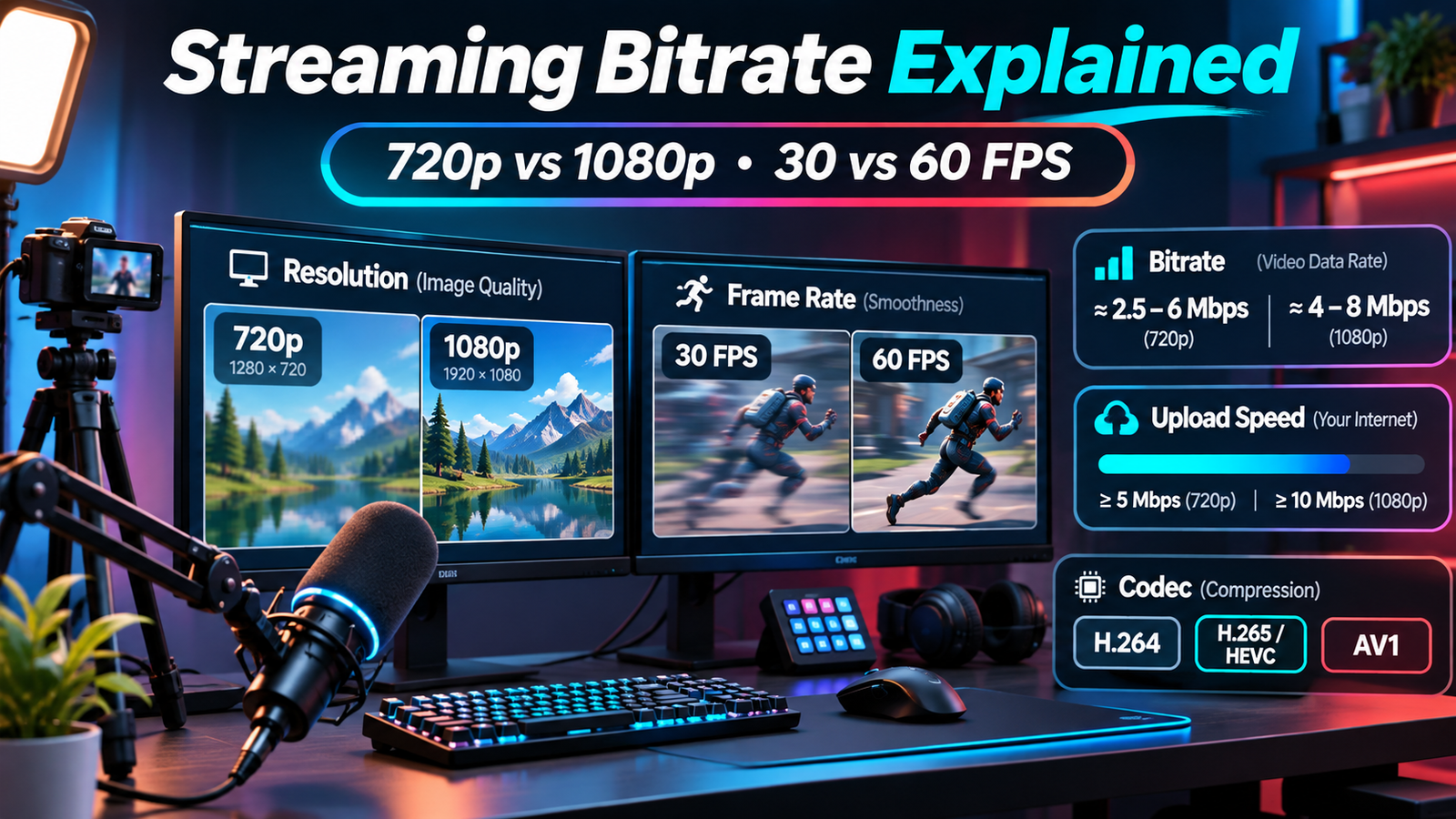
A crisp livestream depends on more than selecting 1080p and pressing Go Live. Bitrate controls how much video information your encoder sends each second; resolution determines image detail, while frame rate determines motion smoothness. Increase all three without sufficient upload capacity and viewers may see buffering, blocky action, or interruptions. This guide explains the tradeoffs, compares YouTube’s official live recommendations, and shows how to choose settings your connection can sustain.
What Is Streaming Bitrate?
Video bitrate is the amount of encoded video data transmitted per second, usually expressed in megabits per second (Mbps) or kilobits per second (Kbps). A 6 Mbps video stream sends roughly 0.75 megabytes of video data each second, before audio and networking overhead. At a constant average rate, that equals approximately 2.7 gigabytes of video data per hour.
Higher bitrate gives an encoder more room to describe textures, motion, and changing scenes. It does not create missing detail: a blurry camera, noisy lighting, or poorly configured encoder can remain blurry at 20 Mbps. Conversely, demanding footage such as grass, confetti, or fast-moving gameplay can look noticeably worse when heavily compressed.
Bitrate is also different from your internet plan’s download speed. Broadcasting uses upload bandwidth, and the speed available to the streaming server may fluctuate even when a speed test looks impressive.
720p vs 1080p: Which Resolution Makes Sense?
720p contains 1280 × 720 pixels, while 1080p contains 1920 × 1080 pixels. That gives 1080p 2.25 times as many pixels per frame. More pixels can preserve interface text, fine textures, and small details, but require more encoding work and generally more bandwidth for similar visual quality.
Choose 720p when connection stability matters most, your audience often watches on smaller screens, or the scene contains relatively large visual elements. Consider 1080p for software tutorials, strategy games with small labels, and detailed camera footage, provided the encoder and connection can support it.
Upscaling a 720p source to 1080p does not restore detail that was never captured. For a genuine improvement, start with a sufficiently sharp source and check whether text remains readable at the viewer’s actual playback size.
30 vs 60 FPS: Motion Has a Bandwidth Cost
FPS means frames per second. At 30 FPS, the viewer receives 30 distinct frames each second; at 60 FPS, that number doubles. Higher frame rates typically make camera pans, racing games, and rapid mouse movement look smoother. Talking-head streams, presentations, and mostly static screens often work well at 30 FPS.
However, doubling FPS without increasing bitrate leaves fewer bits available per frame on average. This can introduce blockiness in complex scenes. A useful comparison is that 1080p60 processes 4.5 times as many pixel positions per second as 720p30, although it does not necessarily need 4.5 times the bitrate because video compression reuses information between frames.
If movement is the main attraction, prioritize 60 FPS before increasing resolution. If viewers must read fine text, prioritize sharp 1080p output and accept 30 FPS when bandwidth is constrained.
YouTube’s Official Live Streaming Bitrate Recommendations
YouTube publishes separate minimum and recommended ingest bitrates for different codecs, resolutions, and frame rates. The figures below are for live video ingest, not previously recorded video uploads. All values are video bitrate in Mbps.
| Live output | AV1/H.265 minimum | AV1/H.265 recommended | H.264 minimum | H.264 recommended |
|---|---|---|---|---|
| 720p, 30 FPS | 2 | 6 | 3 | 8 |
| 720p, 60 FPS | 2 | 6 | 3 | 8 |
| 1080p, 30 FPS | 4 | 10 | 5 | 14 |
| 1080p, 60 FPS | 4 | 12 | 6 | 17 |
Source: YouTube Help, “Choose live encoder settings, bitrates, and resolutions.” Its current table gives identical 720p recommendations at 30 and 60 FPS; do not assume the published number automatically doubles with frame rate.
These are platform guidance figures, not guarantees that every stream will look excellent at the listed minimum. Fast gameplay, encoder quality, network consistency, and the viewer’s playback conditions still matter. YouTube also transcodes incoming streams into multiple viewing formats, so your ingest bitrate is not necessarily the bitrate each viewer receives.
Importantly, YouTube’s video upload recommendations use a different table. Applying those figures directly to livestreams can lead to misleading comparisons. Always check the specific platform’s live ingest requirements before copying someone else’s OBS preset.
H.264 vs H.265 vs AV1: Why Codec Choice Changes Bitrate
A codec compresses pictures before transmission. H.264 offers broad compatibility and remains a sensible default when hardware or platform support is uncertain. H.265, also called HEVC, generally preserves more detail at the same bitrate but requires compatible encoding and platform support. AV1 can provide further compression efficiency, especially with capable hardware encoders, although availability varies by device and workflow.
YouTube’s published recommendations illustrate this difference: 1080p60 is listed at 17 Mbps for H.264 versus 12 Mbps for AV1/H.265. That comparison does not mean switching codecs instantly improves your stream. Hardware encoding quality, encoder presets, motion, and implementation affect actual results.
Check your broadcasting platform before selecting HEVC or AV1. YouTube lists all three for supported live workflows, but that does not establish support on other services. Also distinguish standard dynamic range from HDR: YouTube’s live documentation lists HEVC for HDR and does not support AV1 for HDR ingest.
How Much Upload Speed Do You Really Need?
Your internet upload capacity must accommodate video, audio, protocol overhead, and temporary variation. A practical planning rule is to keep the combined streaming bitrate around 70% or less of your repeatedly measured, stable upload speed. This is a conservative troubleshooting allowance, not an official YouTube requirement.
For example, suppose multiple tests show 10 Mbps sustained upload. A 6 Mbps video setting plus YouTube’s recommended 128 Kbps stereo audio uses approximately 6.128 Mbps before overhead. That leaves room for fluctuations. Trying to send 10 Mbps of video over the same connection would leave virtually no margin, regardless of the resolution menu setting.
With only 5 Mbps reliably available, 1080p60 H.264 is a poor starting point: even YouTube’s listed 6 Mbps video minimum exceeds your measured capacity. A lower resolution, reduced frame rate, or more efficient supported codec is more realistic. Compare settings against the minimum and recommended values, not just the fastest speed test result.
Test at the time you normally broadcast. A wired Ethernet connection can eliminate common Wi-Fi variability, but congestion beyond your home network may still affect the route to YouTube’s ingest server.
Set Up and Test Your Stream in OBS
- Open Settings → Video. Set Base (Canvas) Resolution to match your source layout, then choose an appropriate Output (Scaled) Resolution: 1280 × 720 or 1920 × 1080.
- Select 30 or 60 FPS based on motion, readability, and available processing power.
- Under Settings → Output, select your streaming encoder and configure the video bitrate according to your connection and destination platform.
- For YouTube, use CBR bitrate control and a two-second keyframe interval, matching its published encoder guidance. Confirm the selected codec works with your chosen streaming method.
- Run a private or otherwise nonpublic test with realistic gameplay, camera movement, and audio. Watch OBS Stats and YouTube’s stream health indicators rather than judging an unmoving preview.
If OBS reports dropped frames, investigate the connection to the ingest server, unstable upload, or excessive bitrate. If it reports rendering lag or encoding lag, inspect GPU and encoder workload instead. OBS recommends lowering output resolution or FPS when hardware cannot keep pace. Reducing bitrate alone will not resolve every rendering bottleneck.
Common Mistakes That Make Streams Look Worse
Choosing 1080p60 Just Because It Is Available
A higher menu setting cannot compensate for inadequate bandwidth. When fast motion turns into muddy blocks, test 720p60 or 1080p30 and compare recorded playback under similar conditions.
Ignoring Audio and Other Upload Traffic
Cloud backups, video calls, and uploads consume the same upstream capacity. Reserve space for audio and background activity instead of assigning your full measured upload rate to video.
Confusing Local Recording With Live Delivery
A high-quality local recording can use much greater bitrates because it does not need to cross a real-time internet connection. YouTube’s upload encoding guidance is therefore not interchangeable with live ingest guidance.
Frequently Asked Questions
Is 720p60 Better Than 1080p30?
For rapid gameplay, 720p60 often feels smoother. For tutorials or detailed interfaces, 1080p30 may be easier to read. Neither universally wins; compare real motion and text at the bitrates your connection supports.
Does Higher Bitrate Reduce Stream Delay?
Not necessarily. Latency depends on buffering, encoding, transmission, and platform settings. Increasing bitrate beyond sustainable upload capacity can actually cause instability rather than faster delivery.
Can Viewers Watch at Lower Quality Than My Stream?
Yes. YouTube says it transcodes incoming livestreams into different output formats, allowing viewers on varied devices and connections to select suitable playback quality. Your chosen encoder output and their delivered stream are not identical.
Conclusion
Start with your reliable upload speed, then choose motion smoothness or fine detail according to the content. Use YouTube’s live bitrate table as a reference, leave bandwidth headroom, and validate settings with realistic tests. A stable 720p stream is better viewing than an unstable 1080p showcase.