
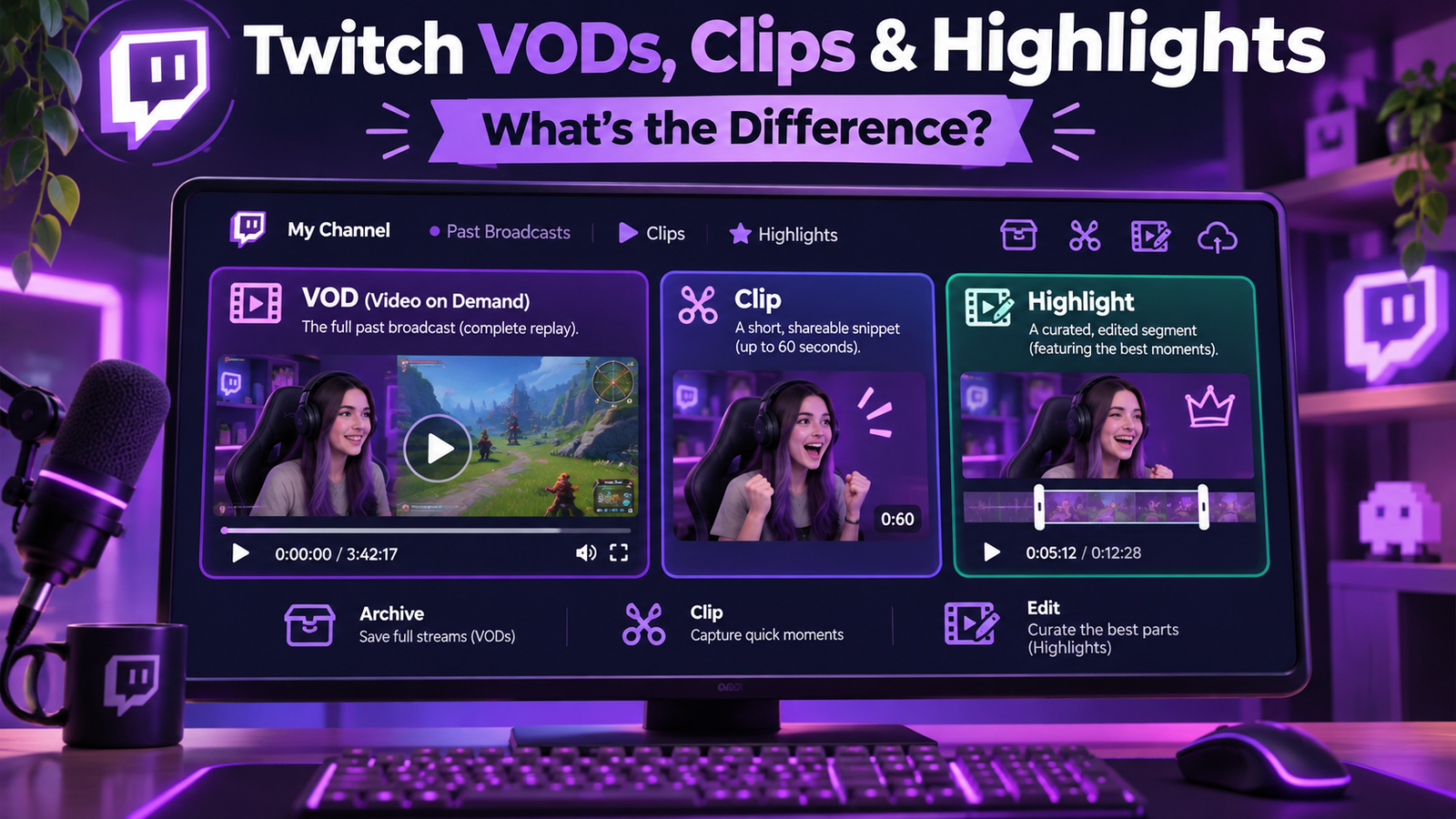
A Twitch stream does not automatically become a permanent video archive. After a broadcast ends, viewers might find a full replay, a short clip, a curated highlight, or nothing at all. These formats serve purposes, and Twitch applies different rules to each. Understanding those differences helps viewers find missed moments.
The simplest distinction is this: VODs preserve broadcasts, clips capture brief moments, and highlights curate selected sections. Their availability depends on account status, channel settings, permissions, and storage limits. Here is how each format works and when to use it.
Twitch VODs vs. Clips vs. Highlights at a Glance
| Feature | Past Broadcast (VOD) | Clip | Highlight |
|---|---|---|---|
| Main purpose | Replay a stream | Share one moment | Preserve selected footage |
| Typical scope | Full broadcast | Up to 60 seconds | One or multiple segments |
| Creation | Automatic when enabled | Viewer or creator, if permitted | Creator or editor |
| Availability | Limited retention window | No standard VOD expiry window | No scheduled expiry, subject to storage |
| Storage allowance | No hourly cap | Separate from highlight allowance | Shares 100 hours with uploads |
| Best use | Catching up | Social sharing | Evergreen channel content |
These labels describe Twitch video types, not editing quality. A highlight can contain several scenes, while a clip might show one unedited reaction. Neither format should be confused with an independently uploaded video or a collection, which is a playlist rather than a new recording.
What Is a Twitch VOD?
VOD stands for video on demand. On Twitch, a Past Broadcast is the saved replay of a livestream. It lets viewers watch a match, discussion, or event after the live session finishes, provided the recording exists and they have permission to see it.
Broadcasters must enable Store past broadcasts under Creator Dashboard > Settings > Stream before going live. Twitch says this setting is not enabled by default. Turning it on afterward cannot restore a stream that was never saved. A failed or incompatible stream configuration can also prevent a recording from appearing.
How Long Do Twitch VODs Last?
| Broadcaster status | Past broadcast retention |
|---|---|
| Regular broadcaster | 7 days |
| Twitch Affiliate | 14 days |
| Twitch Partner, Prime, or Turbo user | 60 days |
These are automatic retention periods, not guarantees that every recording stays accessible throughout the window. A broadcaster can delete or unpublish videos earlier. Unpublished VODs are not publicly watchable, and channels may restrict archives to subscribers.
There is another easily overlooked limitation: Twitch states that vertical versions of dual-format VODs and 2K-quality versions expire after seven days. On eligible longer-retention accounts, the horizontal or 1080p version remains for the rest of the normal period. Anyone needing the alternate format should save it promptly.
What Is a Twitch Clip?
A clip is a short excerpt taken from a livestream or an available past broadcast. Twitch currently allows clips up to 60 seconds long. Clips are designed for moments that make sense without the entire stream: a surprising result, a funny exchange, or a quick tutorial tip.
Unlike highlights, eligible logged-in viewers can make clips of another creator’s channel. The streamer controls that permission and may restrict clipping to followers or subscribers, exclude categories, or disable clips entirely. If the Clip button is unavailable, channel permissions may explain why.
Creating a clip involves selecting the moment, adjusting its length, adding a title, and publishing it. Twitch also supports landscape and portrait versions, with cropping tools for mobile-oriented sharing. Creators can manage clips in Creator Dashboard > Content > Clips, including clips their viewers made.
Importantly, a clip has its own identity rather than simply being a bookmark into the full replay. It can remain available after its source VOD expires, although clips can still be deleted or removed. Do not assume that finding a clip means the complete broadcast is recoverable.
What Is a Twitch Highlight?
A highlight is a curated video made from sections of a saved Past Broadcast. Unlike a clip, it is not constrained to a single 60-second moment. The Highlighter can combine multiple sections from the same recording into one video, making it useful for condensed tournament coverage, walkthroughs, or memorable conversations.
To create one, open Creator Dashboard > Content > Video Producer, find the past broadcast, and select Highlight. In the Highlighter, adjust the beginning and end of segments, remove unwanted sections, preview the result, and publish it with an informative title.
Highlights do not follow the standard seven-, fourteen-, or sixty-day VOD deletion schedule. However, Twitch imposes a combined 100-hour storage limit on highlights and uploaded videos, including unpublished items. Once you approach the limit, you may be unable to create more highlights until you free space. Existing highlights should not be treated as a substitute for independent backups.
Which Format Should You Choose?
Consider a three-hour charity gaming stream containing a dramatic comeback, an instructional explanation, and several quieter stretches. Each format solves a different problem.
- Keep the VOD so viewers can experience the complete event, including context and chat-related moments.
- Publish a clip of the comeback for a shareable introduction to the channel.
- Create a highlight combining the explanation and best gameplay, removing lengthy breaks without losing the story.
For a viewer, the decision is equally straightforward. Choose a VOD when sequence and context matter, clips when searching for a particular incident, and highlights when you want a creator-selected recap. Check the channel’s Videos and Clips sections rather than expecting every recording in the same place.
How to Save a Twitch Stream Without Losing It
A simple routine protects valuable footage better than relying on Twitch’s retention window.
- Before streaming: Enable past broadcast storage in the web Creator Dashboard. Check whether automatic publishing or excluded categories prevent public access.
- During streaming: Add stream markers at useful moments using the dashboard’s quick action or the
/markerchat command if available to your role. - Immediately afterward: Open Video Producer and confirm the VOD actually exists. Inspect playback and note any muted audio or missing sections.
- Before expiration: Use the video’s three-dot menu to download it, or connect YouTube and use Twitch’s export feature where available.
- While the VOD exists: Create your best clips and highlights. Review their titles, access settings, and presentation before sharing.
- For long-term preservation: Keep an independent copy in storage and verify that the file plays before deleting anything from Twitch.
This workflow matters especially for regular broadcasters with only seven days of VOD retention. A calendar reminder before the deadline can help, but checking that the downloaded file opens is the step that actually confirms you have a usable backup.
Storage, Access, and Copyright Limitations
The 100-hour allowance applies to highlights and uploads together, not ordinary Past Broadcasts. Making a full-stream highlight merely to keep every VOD consumes that allowance quickly. Unpublishing a highlight does not free capacity; deleting eligible stored content does. Twitch’s Video Producer shows usage, and creators can remove highlights or uploads to regain space.
Visibility is a separate question from storage. A video may exist in the creator’s dashboard but remain inaccessible to viewers because it is unpublished, restricted, or removed. Twitch’s subscriber-only archive setting can restrict Past Broadcasts and highlights. Clips also depend on clipping permissions, and channel owners can remove clips posted by others.
Copyright creates another risk. Twitch scans recordings for copyrighted audio and may mute affected VOD sections. Downloading a muted VOD does not restore the missing sound. A mute is not automatically a copyright strike, but permission to use music still matters. If Twitch muted audio incorrectly, creators can review its official appeal process rather than assuming the recording is permanently unusable.
Frequently Asked Questions
Can I watch a Twitch VOD after it expires?
Not through Twitch once it has been deleted. Check whether the creator exported it elsewhere or made a highlight first. A remaining clip usually contains only that excerpt, not the full recording.
Do Twitch clips expire after seven days?
No standard seven-day VOD retention rule applies to clips. They may outlast their original broadcasts, but creators or Twitch can remove them. Treat important clips as content worth backing up.
Can viewers create highlights?
The Highlighter is a creator-side editing tool, with editor access supported. Regular viewers can create clips when the channel permits it; they cannot independently create highlights in someone else’s Video Producer.
Does deleting a VOD delete its highlights?
Published highlights are separate video items, designed to preserve selected sections beyond the original broadcast’s retention period. Make and verify the highlight before the original VOD disappears.
Why is my past broadcast missing?
Check whether storage was enabled before the stream, whether the retention period passed, and whether the recording was unpublished or deleted. If no recording was saved, Twitch Support says it cannot recover it.
Conclusion
Twitch VODs are temporary full-stream replays, clips are short shareable moments, and highlights are longer curated selections. The key is matching each format to its purpose while respecting retention, storage, and visibility rules. Enable VOD storage before streaming, edit important moments before deletion, and maintain independent backups for anything you cannot afford to lose.
Sources and References
- Twitch Help — On-Demand Content on Twitch
- Twitch Help — How to Create, Edit, and Share Clips
- Twitch Help — Creating Highlights and Stream Markers
- Twitch Help — Clip Settings
- Twitch Help — Affiliate Settings Guide
- Twitch Help — How to Appeal Muted Audio
- Twitch Developer Documentation — Clips API